
You can now connect multiple library cards to your account
You can now connect multiple different library cards to the same account in the Helmet online library. Once the cards are connected to your account, you can browse the checked out items of all the cards connected to your account, make new loans for different cards and make and cancel holds and recalls for different cards with a single login.
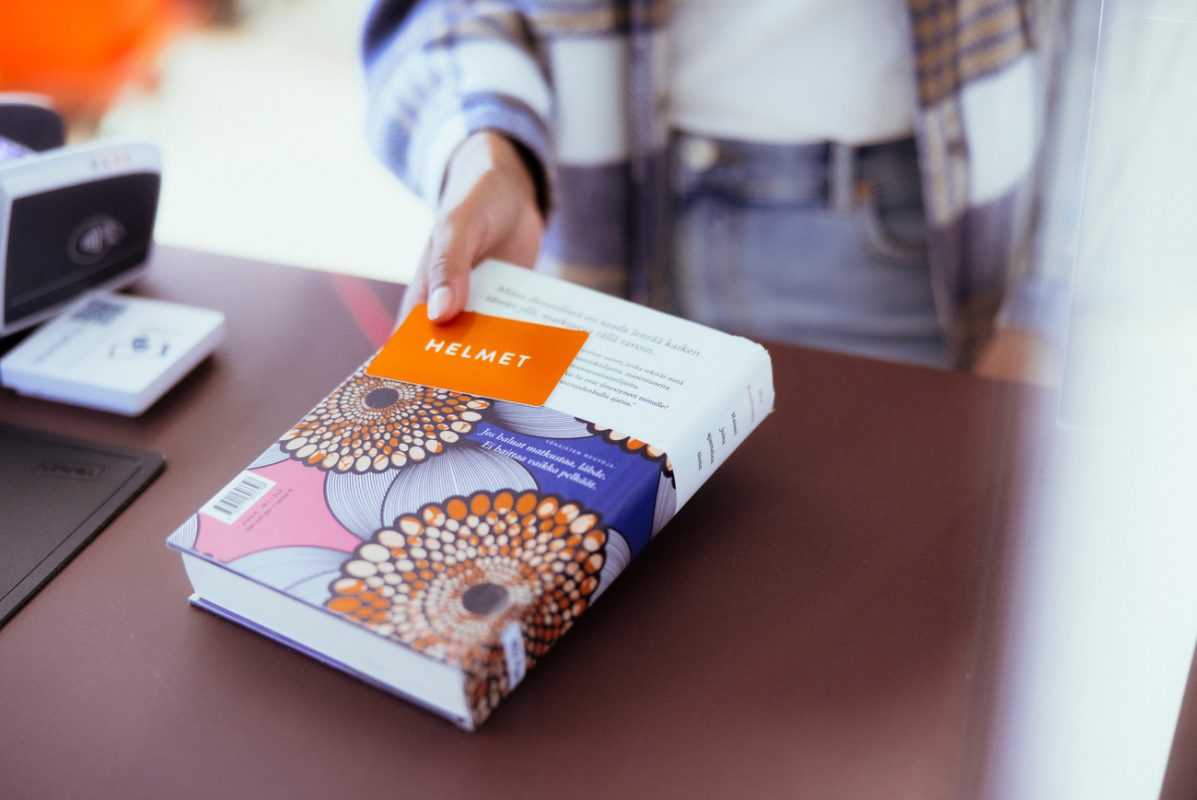
For example, you can connect your child’s or an elderly relative’s card to your account. You will then be able to see the due dates of their checked out items and renew loans in the online library.
If you are a teacher, you can also connect your school class or daycare group card to your own account.
You can select the card that you want to use from the drop-down menu on the ‘Your account’ page of the online library.
Connect cards yourself in the online library
You can connect other cards to your account once you have agreed upon it with the cardholder. To connect a card, you will need the number and PIN of the card.
Library staff will not connect cards and cannot see which cards are connected to your account in the online library. The customer takes full responsibility for connecting cards to and disconnecting cards from their account.
Guardians must disconnect their dependent children’s library cards from their accounts by the time the children reach the age of 15.
If the cardholder changes the PIN on their card, you will no longer be able to use the card through your account. If the library card number is changed, you will need to connect the card to your account again and disconnect the old card number in the online library.
How to connect a card to your account
Follow these steps:
- Log in to ‘Your account’ in the online library with your own library card.
- Press the ‘Library cards’ tab.
- Press ‘Connect library/parallel card’. Enter the number and PIN of the card that you want to connect. The card is now connected to your account.
You can give each connected library card a name to easily identify them.
To disconnect a library card from your account, use the ‘Disconnect library card’ button.
How to disconnect your card from another user’s account
You can check whether your card is connected to another user’s account. To do so, go to ‘Your Account’, open the ‘Library cards’ tab and navigate to the section ‘Show all accounts connected to this library card’.
- If you no longer want your card to be connected to another user’s account, ask them to disconnect your library card from their account.
- Alternatively, you can change your PIN. When you do so, the library card can no longer be used through the other account.
For more information on how to connect cards, please see the ‘Using the online library’ page.